

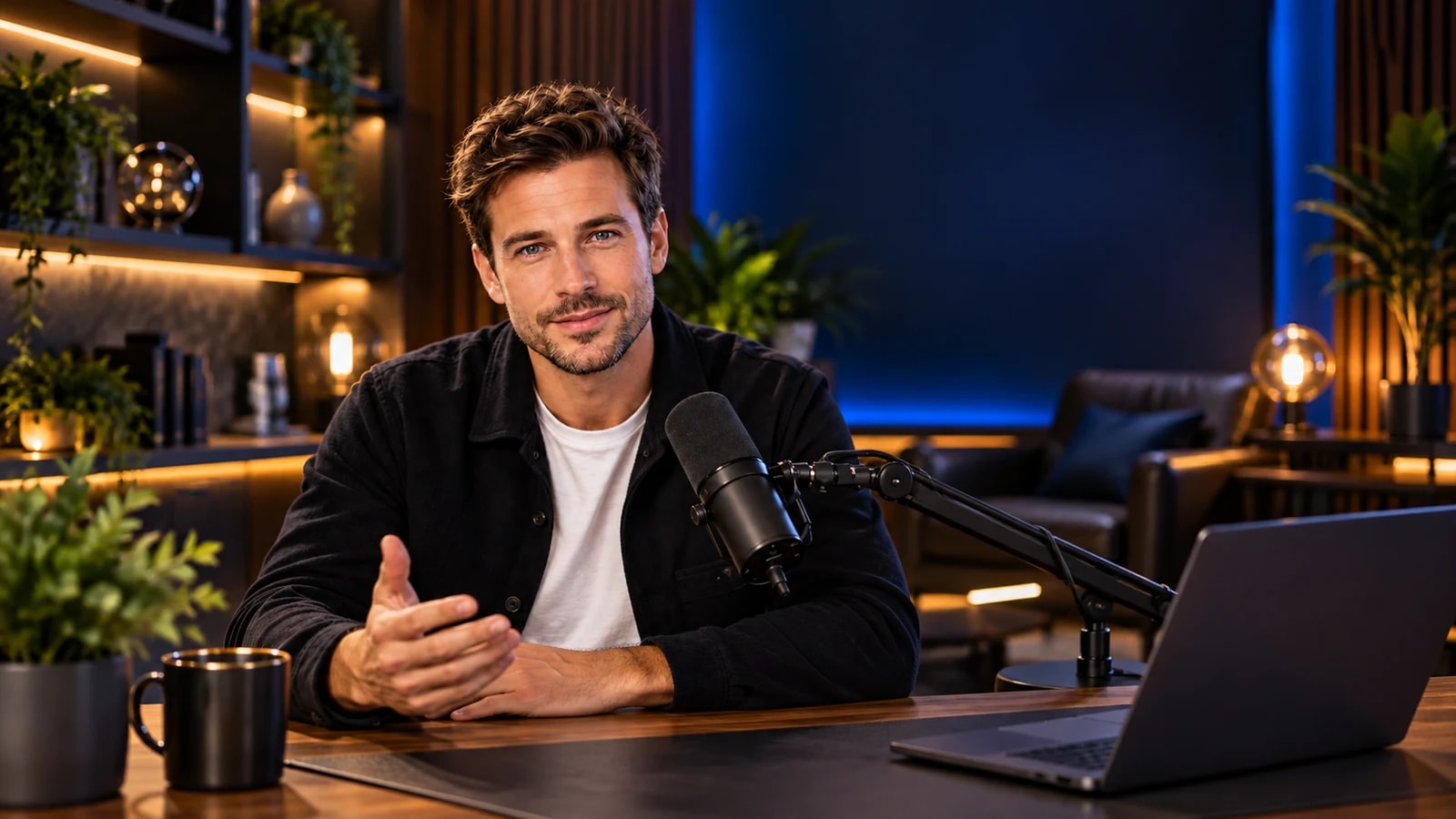
Most of the people who will ever see your show will not see it live. They will find the replay, a clip on social media or a recap a few days later. That is why recording your live streams in 1080p60 matters as much as the live itself.
What 1080p60 means
1080p is Full HD: 1920 × 1080 pixels, sharp on a laptop and on a living-room TV. 60 is the frame rate: sixty images per second, twice the usual thirty. Movement looks smooth, hand gestures stay clear, and a screen share you scroll through stays readable.
Every live is recorded, automatically
In Studio Go you do not have to remember to press record. Every live is recorded in 1080p at 60 fps, whatever quality you send to your channel.
That last point is useful. You choose the live quality for each show (720p or 1080p, at 30 or 60 fps), for example 720p when your connection is modest. The recording is still made in 1080p60, so the replay you publish later keeps the best quality.
Recording without going live
Not every recording needs an audience. Start a recording on its own, with no live at all, to:
- prepare an episode and publish it at a better time;
- record a course or a tutorial, with your screen share and your brand on screen;
- rehearse a show with your guests and watch it back.
You get the same studio for it: layouts, lower thirds, media and the full show flow.
Where your recordings go
When a live or a recording ends, the file waits for you in Old records, ready to download. There is nothing to export or render: download it and it is ready for your editing software or your video platform.
Five ways to reuse a live
1. Publish the full replay
Upload the recording as a replay with a clear title and a short description of what was covered. Add chapters for each segment if your platform supports them.
2. Cut short clips
Find the three strongest moments (a sharp answer, a surprising number, a funny exchange) and cut them into short vertical or square clips for social media. Each clip should make sense on its own in under a minute.
3. Make an audio episode
Conversations work well as audio. Export the sound in your editing software and publish it as a podcast episode.
4. Write a recap
Turn the main points into a blog post or a newsletter, and embed the replay. It brings search traffic to a show that would otherwise be over.
5. Build a library
Group recordings by theme: onboarding sessions, product demos, interviews. Over time your lives become a library your audience can browse.
Tips for a clean recording
- Light the face. A window or a lamp in front of you beats any camera upgrade.
- Mind the sound. Use a decent microphone and turn on noise reduction.
- Pick layouts deliberately. A clip cut from a two-person layout is easier to reframe later.
- Leave a beat. Pause a second before and after each segment: it gives you clean cut points.
- Brand it. Lower thirds and your logo travel with every clip you cut. See our guide to live stream branding.
Recording questions
Is the recording the same quality as the live?
The recording is always 1080p at 60 fps. The live goes out in the quality you chose for it, which can be lower.
Can I record a show and stream it later?
Yes: record without going live, then publish the file whenever you want.
Who can download recordings?
You do, from Old records in your studio. Share the file with your guests if you want them to have it.
Every plan records every live in 1080p60. Find your plan, or see how going live works.